
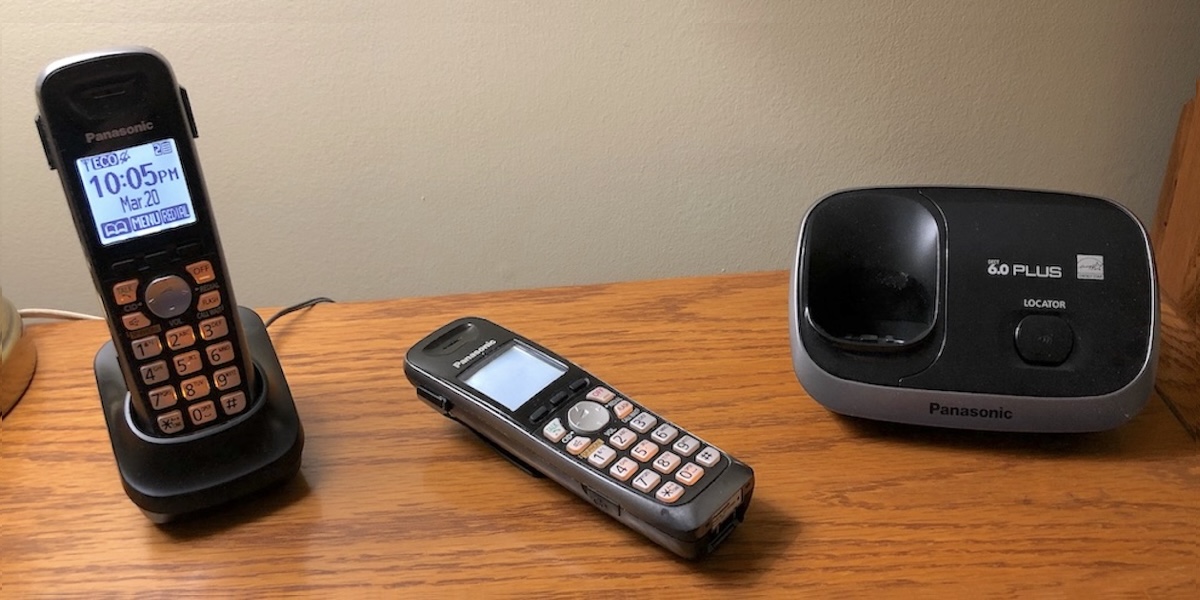
Panasonic makes cordless phones with features a modern phone should have. I discuss what I love about their phones.
I always had to program each handset individually, with other brands of cordless phones I’ve had in the past. That was a chore, but it’s not necessary with the Panasonic.
The beauty of Panasonic’s design is that all the handsets work off the central programming stored in the base. That is the right way for a cordless phone system to work.
This Panasonic phone makes installation easy, without running wires. You just plug in the base to the main phone line. The other handsets have a remote charger base, so you can place them anywhere you have an electric outlet.
If you don’t have voicemail with your phone service, you can get the version of this phone with a built-in answering machine. It’s your choice.
That does a perfect job of taking messages. You can record your own greeting or leave the phone's default generic greeting.
If you have voicemail service, I suggest you take advantage of it and save money by buying the version of this phone without an answering machine.
Older phones use the same frequency as WiFi routers. So, older phones that use the 2.4 GHz range will cause interference with your WiFi.
The Panasonic is a DECT 6.0 phone. It uses a higher frequency, so it works well without interfering with WiFi.
The digital signal also has a better range and requires less power. So it lengthens the battery life between charges.
Now here’s a feature I really love! When I had other phones from other manufacturers, I had to program each handset individually. I discovered that Panasonic keeps all the programming in the base.
That means that if you use more than one handset with your base, anything you program on one handset is automatically available on all the others.
I used to hate having to program my friend's numbers into each handset. Now with this phone, I only do it once. And any changes I make are also on all the other handsets. I’ll never go back to another phone.
| Feature | Explanation |
|---|---|
| Redial | Redial last dialed number. |
| Intercom | Call another handset on same base. |
| Economy | Low energy enabled to extend battery life when close to base. ECO icon displays. |
| Volume | Control volume while talking. |
| Mute | The “Mute” soft button can be pressed so other party can’t hear you. |
| CID | Recent caller list. |
| Ringer Setting | Select from a large list of ring tones. |
| Ringer Mute | Disable ringer on any handset so not to be disturbed. |
| Lighted Keys | The keys and display light up so you can use it in the dark. |
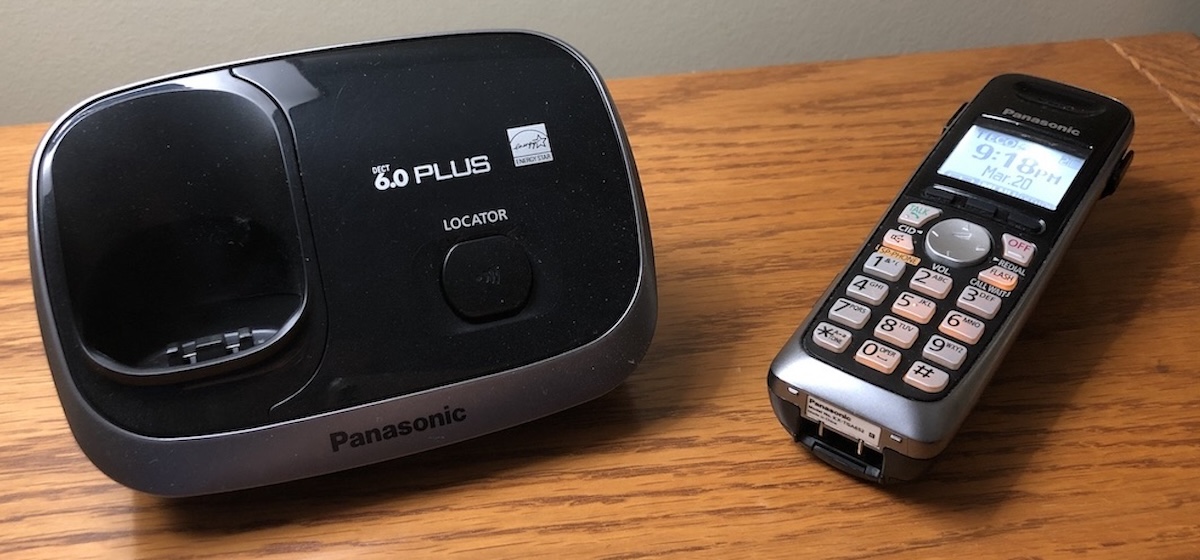
The first time you use it, the phone batteries are partially charged. Just make sure you hang it up the first night, so it charges fully.
However, you can start playing with it right away. Add your friends, add your voicemail number and pin, and any personal settings you want.
You don’t need to set the time and date. As soon as the first call comes in, it takes that information from the carrier. Most providers send the time and date along with the ring signal.
You don't need to correct the time on the phone when the clocks are changed for daylight saving time. The phone’s clock will be adjusted automatically when the next call comes in.
However, if your service provider doesn’t pass the date and time information, you can still program it yourself in the settings menu.
The three buttons below the screen dynamically change their functions depending on what features are needed at different times.
These three buttons are soft keys. That is, they can change their function. The screen above the buttons shows what they do at any specific time. For example, the VM button becomes a MUTE button while you are talking.
As shown in the image below, the left icon means the soft button will display the name directory. The middle one gives you the menu of options. The right soft button is for redial.
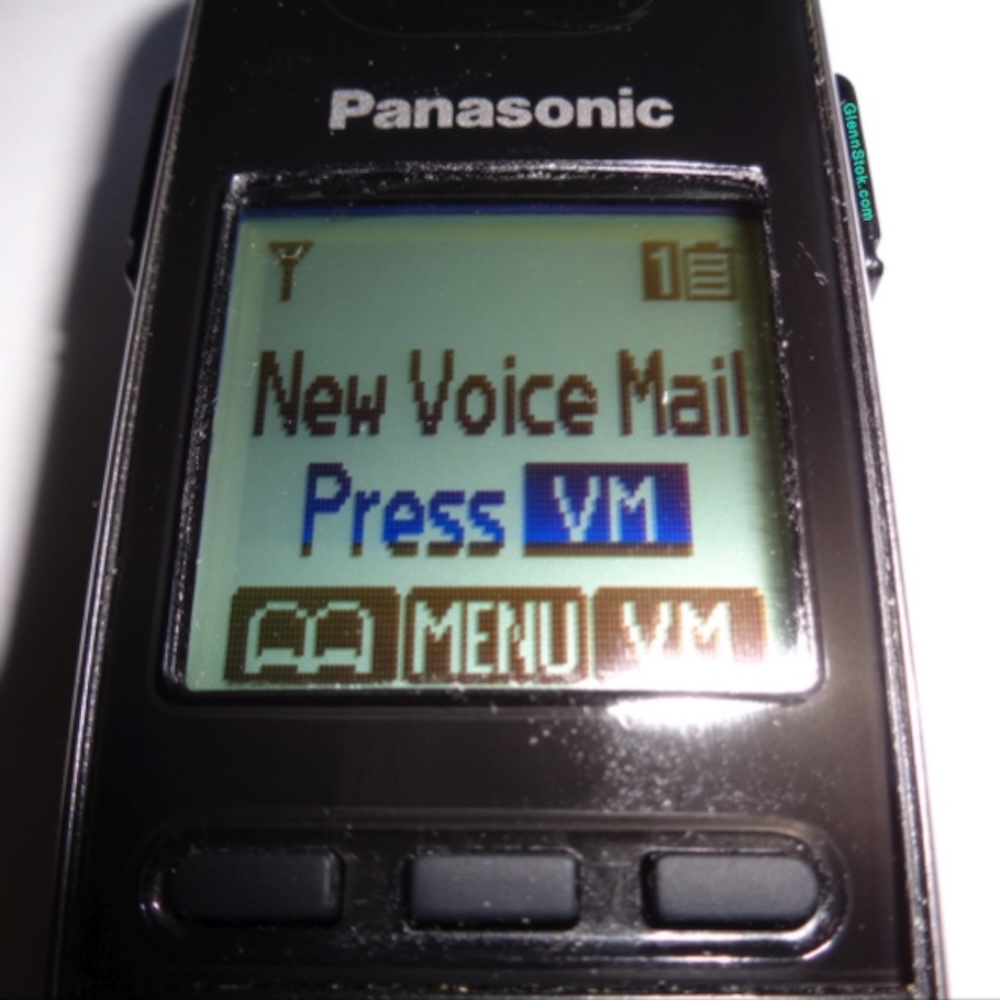
When you have a voicemail message, the top right button becomes the VM button.
It says VM right above it. But you only see that if you have messages. It becomes a REDIAL button if VM is not needed, as shown above.
Note that all the soft buttons always display their function on the screen.
The image here shows the three soft buttons in this state when the phone is not engaged in a conversation.
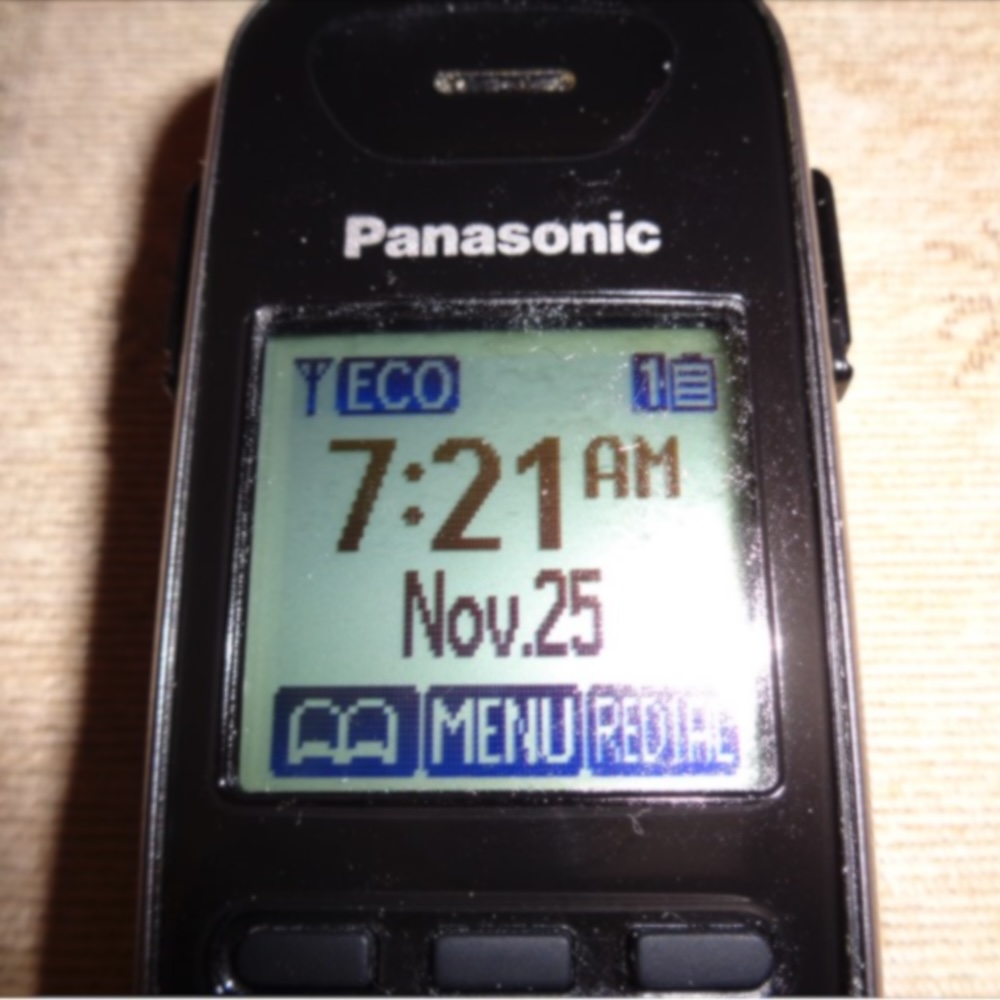
Panasonic has an Economy Mode that automatically reduces transmit power requirements between the handset and the base station when it's close enough.
This helps extend phone battery life. "ECO" will display on the screen, as shown in the close-up image above.
Some people are concerned about radiation from cell phones and cordless phones.
Cell phones use much stronger power to access cell sites up to five miles away. But cordless phones for the home are designed for usage within 500 feet, so they are definitely safe because they use low power.
The Panasonic is even better because the ECO feature lowers the output even further when it’s near the base.
The soft button on the right side becomes a quick voicemail retrieval button and only shows “VM” above it when you have a message, as shown in this image.
You can program the VM soft button to call your service provider’s voicemail and automatically pass your PIN code to log in and play your messages.
You just need to program the calling sequence into the phone once. The dialing sequence is the access number, followed by a few pause characters to wait for the call to go through.
After the pauses, enter your voicemail pin. That's it. Then whenever you press the VM soft button, the phone does all that for you.
I love using voicemail rather than an answering machine because many service providers include a feature to send all messages to your email as an attached audio file.
However, if you don't have voicemail with your service, Panasonic makes the same phone with an answering machine built into the base.
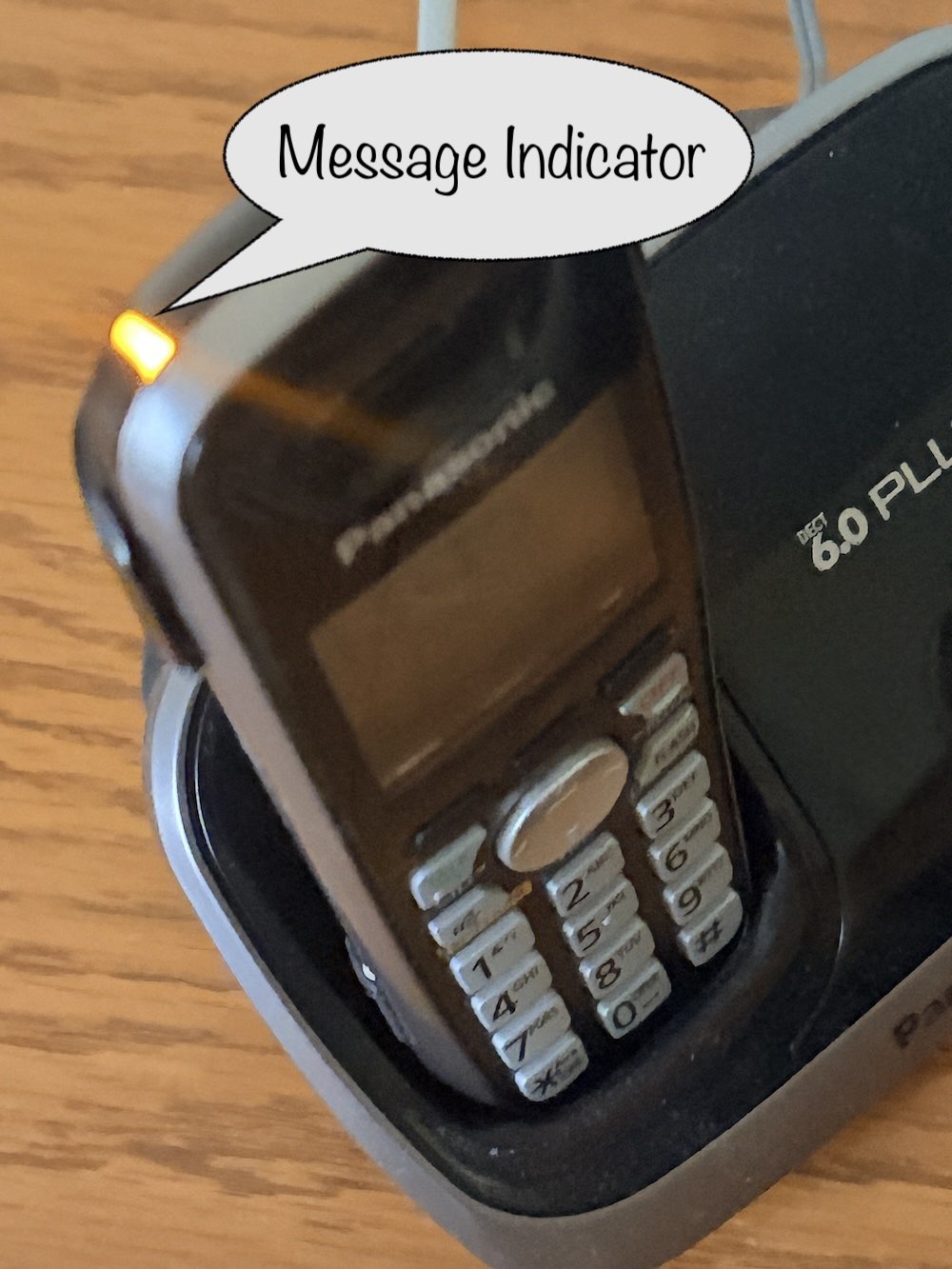
There's a little amber light on top of the handset. It blinks when you have messages. It glows solid when charging.
If you use a voicemail service, the phone will detect when you have messages and indicate it with a flashing light. It also displays the words “Voice Mail” on the LCD screen.
On some newer versions of the phone, these indicators will only work if you have programmed the VM soft button, as I explained above.
Each handset is a speakerphone. If you press the “TALK” button to answer a call, you use it as a regular phone against your ear.
To switch to the speakerphone, press the “SP-PHONE” button on the handset.
One thing you have to deal with, and it’s true for most speakerphones, is that the audio is single duplex. That means that while the other person is talking, they don’t hear you when you speak. That is done on purpose to avoid annoying feedback.
I’ve gotten used to this, but if you don’t like it, then don’t use the speakerphone setting and hold the phone to your ear instead.
Once you have your contacts in your phone's directory, press the left soft button where the phone book icon is displayed. That starts the Phone Book List.
You can press the up or down arrows to scroll through the names you had programmed into the phone.
You can save up to 50 contacts and even assign them to any of nine groups. When you browse your directory, you can select the group you want to browse or select "all groups."
Of course, the advantage of the directory is that you never need to dial numbers. Just scroll to the name, press TALK, and it dials for you.
Usually, when someone calls from a cell phone, the carrier only sends the words “Cell Phone” for the Caller-ID along with the number. Some out-of-town callers will not show the name either, just the number.
If you don’t recognize the number, you’re out of luck unless you want to take a chance answering an unknown caller.
Here’s something wonderful about this phone: If the incoming Caller-ID does not contain the caller's name, the phone will display their name from your directory if the number is matched.
That's all the more reason to put your friend's numbers in the directory.
I get telemarketers calling once in a while. Some repeatedly call from the same number. The Panasonic phone lets you add these numbers to a block list.
The phone plays a recording to them saying the call cannot be completed. You never get bothered anymore.
If another call comes in while you’re already on a call, that caller's Caller-ID will be displayed. If you decide to take that call, press the flash key.
This feature requires “Call Waiting,” and “Call Waiting Caller-ID” service from your phone company.
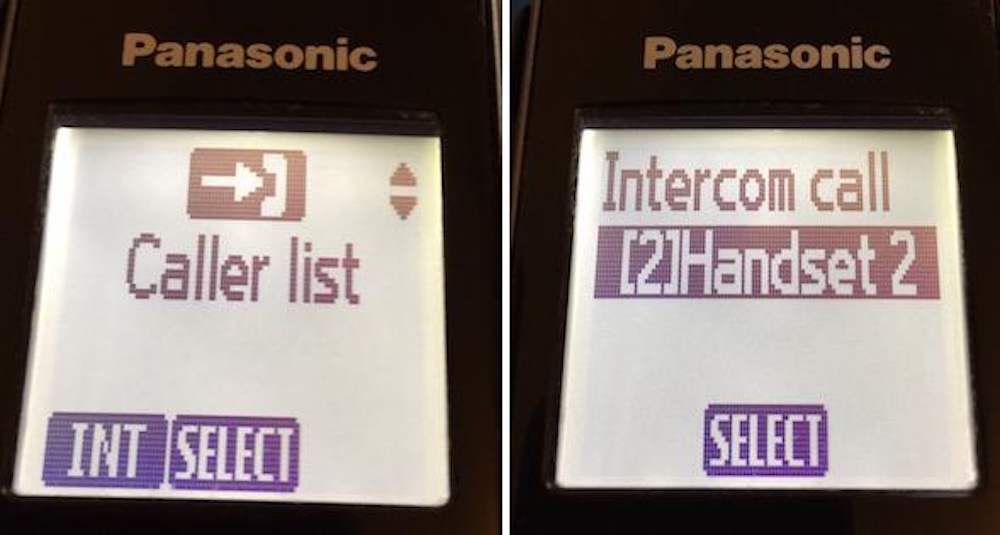
When you press the "Menu" soft button, you will see INT (for intercom) as the left soft button, as shown in the image below.
When you press the INT button, you will see a list of extensions available.
These are all the other handsets assigned to the base. You can call from one handset to another, without making an outside call.
Scroll down to the headset you want to call. If you only have two handsets, then you will only see the other one listed. Click the SELECT soft button, and the other handset will start ringing.
That big button (with up, down, left, and right arrows) has several functions, depending on which arrow you press.
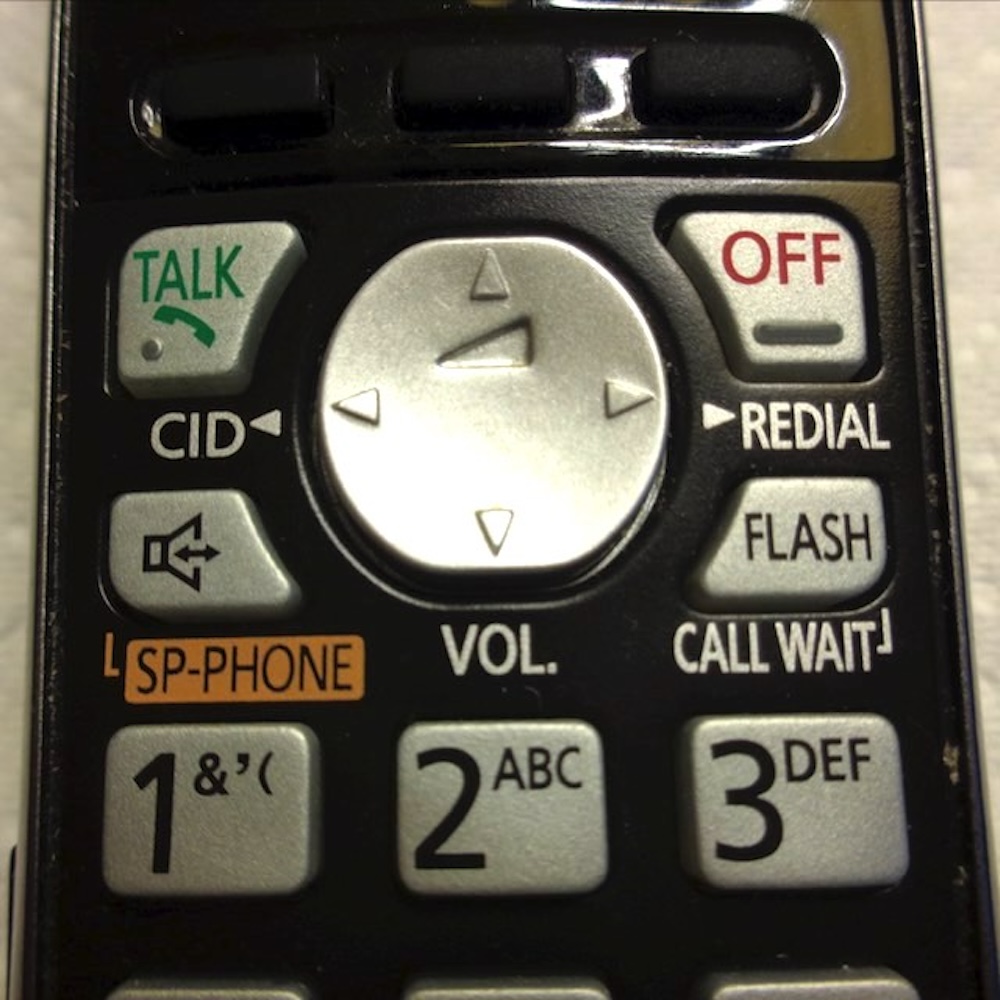
When you're not on a call, the up and down arrows scan back and forth through the menu settings:
The Initial Settings submenu includes:
The up and down arrows scroll through the names in your directory after pressing the name directory button (left soft button).
A single button will automatically dial your remote voicemail service and pass along the PIN code to log in. It does all after you program it once.
Press MENU (soft key), then press down arrow until you get to "Initial Settings." Then select that and scroll down to "VoiceMail. Then store your voicemail access.
That might be your own number or a particular number provided for voicemail access. Follow it with two or three pauses. You’ll see the pause as a special character when in this programming mode.
Then, follow the last pause with the pin. Try two pauses first. If it needs more time before sending the pin code, then add another pause.
The Panasonic Cordless Phone System I bought and discussed in this article has been upgraded to this newer version. The features are still the same, but now you can expand it up to six handsets.
Panasonic Cordless Phone Without Answering Machine 
If your phone provider includes voicemail service, you can save money with this Panasonic phone without including the answering machine. There is no need to duplicate message taking options.
Panasonic Cordless Phone with Answering Machine
If your phone carrier doesn't include voicemail service, get this Panasonic phone with the answering machine in the base.
QUESTION:
Can I block a number in my phone book directory?
ANSWER:
You can only block numbers in your caller list, not if they’re in your directory. To do that, navigate to the Caller-ID in the list of callers. Then select the option to block it.
QUESTION:
Can I answer a call by just picking up the phone from the cradle, not having to push a button?
ANSWER:
You can enable that feature by setting "AutoTalk" to the "on" position in the settings menu. Then, when you pick up the handset from the base or charger cradle, it will automatically answer the call.
If AutoTalk is off (the default), you'll need to press the "TALK" button or the speaker button to answer a call.
QUESTION:
We have two cordless phones with two base units. Every once in a while, I pick up a ringing phone, and I can’t talk to the caller. I get a dial tone instead. What’s wrong?
ANSWER:
Since you say you have two base units, I suspect you or someone in your family is placing the handsets on the wrong base units. An easy solution is to place colored stickers on the bases and handsets. Color-coding will indicate which handset goes with which base unit.
QUESTION:
My cordless handset starts beeping while I’m talking. I let it charge by placing it on the base when not in use. But it still beeps soon after I start a conversation. Why is that happening?
ANSWER:
You need to replace the batteries. They are probably no longer holding a charge. Rechargeable batteries don’t last forever. Replace them, and you should be fine.
QUESTION:
How do I delete a phone number in the phone book?
ANSWER:
When you browse through the directory, the erase option is on every entry. It’s a soft key on the screen.
QUESTION:
My parents have hearing issues and can never decipher what the person calling is saying. How do I increase the volume of the caller on my phone?
ANSWER:
The large center button functions as the volume control if you are using a phone similar to the one I reviewed here. While connected to a caller, press the top or bottom of the button to control the volume, higher or lower.
QUESTION:
I have a cordless Panasonic phone, and I have various callers who cannot get through. The calls do not ring on my phone. Yet others can get through. People tell me to turn off the anonymous private caller setting to see if that helps, but I can’t find how to do that. Any ideas?
ANSWER:
Some people select their privacy settings to avoid sending their Caller-ID. Those callers will not get through to you if you are blocking anonymous callers.
That has nothing to do with the phone. It is a function of your phone service carrier. You need to turn off the call blocking of anonymous callers on your phone service.
If you have a login portal, you should be able to change it there. Otherwise, ask your carrier to disable anonymous blocking.
QUESTION:
Is there a phone with multiple handsets that can be used to talk on the same phone call?
ANSWER:
Yes, you can do that with the Panasonic phone I discussed in this article. If you buy the version with multiple handsets or add more handsets later, each handset will be on the same phone call.
QUESTION:
The blinking light goes off after I’ve played the messages. I want the light to stay on until messages are deleted. That way, if I play messages that are for someone else, I don’t have to remember to tell them. They will notice the light is still blinking and will play the message.
ANSWER:
I understand your dilemma. Unfortunately, that is not a function of the phone. Most carriers shut off the message light when you access your voice mail to listen to messages, even if you don’t delete them.
QUESTION:
I’m trying to figure out how to use the intercom system on the phones. We don’t have an INT button on ours.
ANSWER:
On many of the Panasonic cordless phones, the intercom option is in the menu. Press the MENU button or soft key, scroll to “Intercom,” and you will see INT appear as a soft key. Now, if you press INT, it will show you all the extension handsets. Select the one you want to call.
QUESTION:
My Panasonic phone doesn’t ring anymore. There is an icon of a bell with a line drawn across it. How do I correct this problem?
ANSWER:
The crossed-out bell icon indicates that you had shut off the ringer. You might have done this by either of two methods—the silent mode set by time of day, or by setting the ringer volume to "off."
To turn it back on, follow either of the following steps, depending on which is the case:
If you enabled silent mode:
If you previously turned off the volume:
QUESTION:
We have an old Panasonic phone system that started showing the message "No link. Re-connect the base AC adaptor." Any suggestions?
ANSWER:
Make sure your base unit is plugged into a live outlet. Maybe a circuit breaker popped. It's also possible that your AC adapter transformer has been damaged.
If the power is okay, then the handset is not recognizing the base. Try following the steps to register the handset with its base to re-establish the link. See the instructions in your user manual for that.
Was this meaningful to you? Tap